




How to Resolve iOS 26.2 Can’t Set Up Managed iPhone?

With every new iOS update, Apple continues to enhance security and device management capabilities. However, these improvements can sometimes introduce unexpected issues – especially for organizations relying on Mobile Device Management (MDM). One such problem reported by users is the inability to set up a managed iPhone after upgrading to iOS 26.2.
This issue typically appears during the initial setup process, where the device gets stuck on the “Remote Management” screen or fails to enroll in the organization’s MDM server. Whether you’re an IT administrator or an end user, this can disrupt workflows and delay device deployment.
In this guide, we’ll explore the most common reasons behind this issue and provide step-by-step solutions to resolve it effectively.
1. How to Resolve iOS 26.2 Can’t Set Up Managed iPhone?
1.1 Check Your Network Connection
A stable internet connection is essential for MDM enrollment. During setup, your iPhone must communicate with Apple’s servers and your organization’s MDM server.
What to do:
- Connect to a reliable Wi-Fi network
- Avoid public or restricted networks
- Try using a mobile hotspot to rule out network filtering issues
If the connection is unstable, the device may fail to download the MDM configuration profile, causing setup to stall.
1.2 Verify MDM Server and Device Assignment
If your organization uses platforms like Microsoft Intune ama Jamf Pro , the issue may be on the server side.
Ask your IT administrator to confirm:
- The device is assigned to the correct MDM server
- The server is online and reachable
- Enrollment tokens are valid
- The configuration profile is properly configured
Also, ensure the device is correctly registered in Apple Business Manager or Apple School Manager.
1.3 Erase and Reset the iPhone
MDM enrollment typically requires the device to be in a fresh, factory-reset state.
Talaabooyinka:
Go into
Settings> General> Wareejinta ama Dib u dajinta iPhone
, taabo
Tirtir Dhammaan Waxyaabaha iyo Dejinta
, and follow the prompts to start the setup process over.
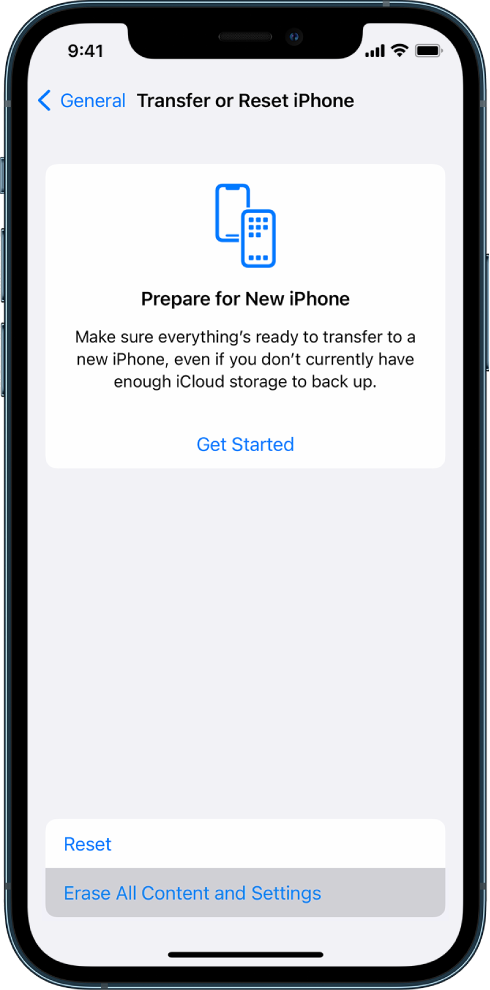
This ensures that no previous configurations interfere with MDM enrollment.
1.4 Force Restart the Device
Sometimes, the issue is caused by a temporary system glitch.
For iPhone 8 and newer models:
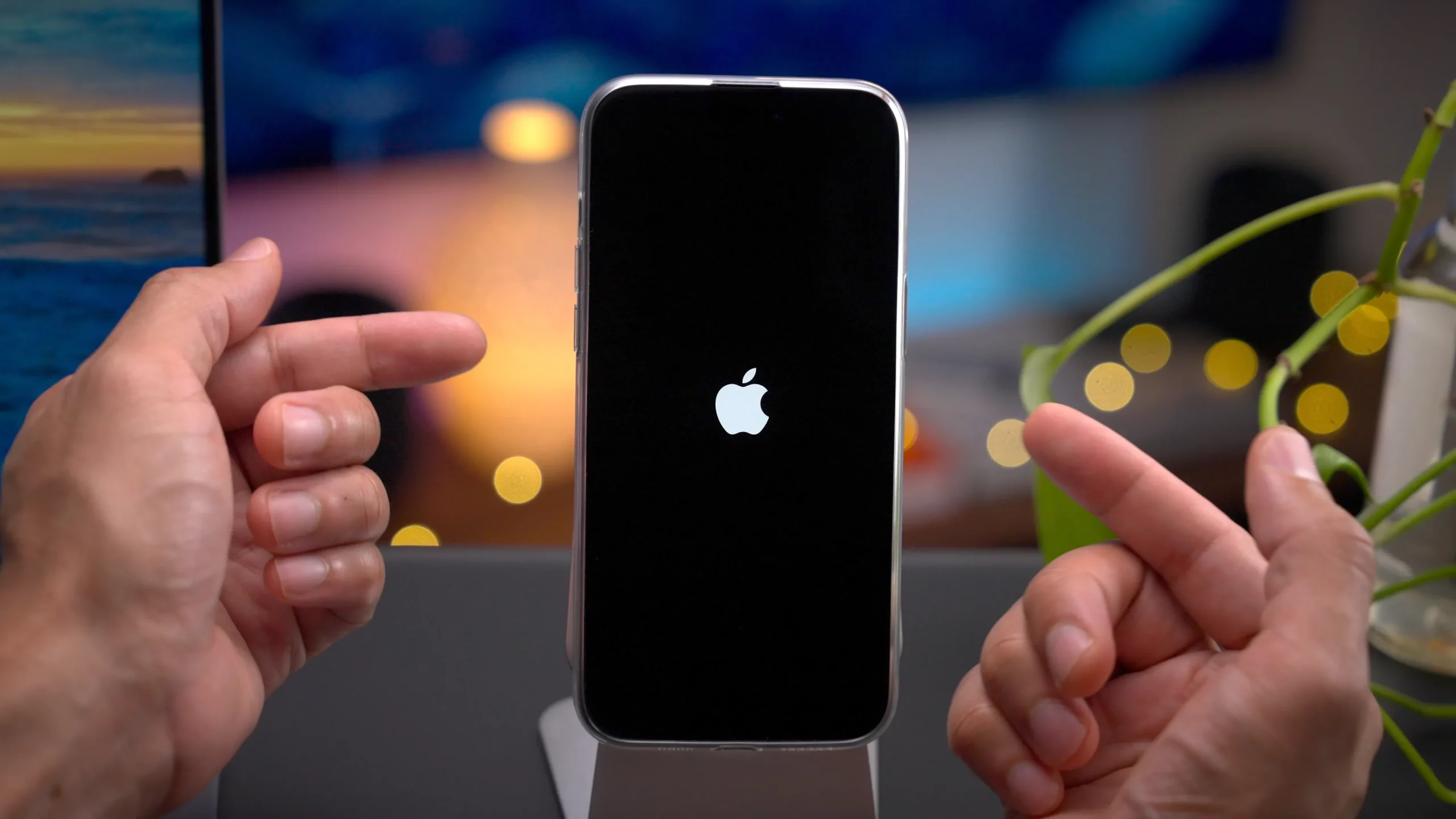
Press Volume Up, then Volume Down, and hold the Side button until the Apple logo shows; this can help resolve small glitches or setup problems.
1.5 Update or Restore via Computer
If the issue persists, try reinstalling iOS using a computer.
- On Windows: use iTunes
- On Mac: use Finder
Options:
- Update: Reinstalls iOS without deleting data
- Restore: Fully wipes the device and installs a fresh system
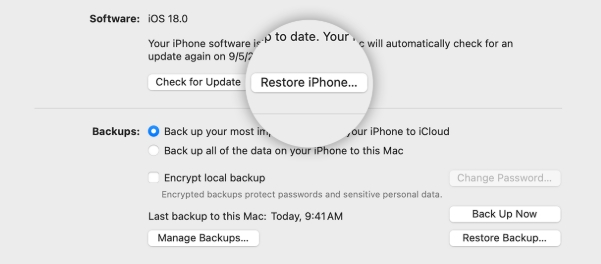
This can fix corrupted system files that may be blocking MDM setup.
1.6 Check for iOS 26.2 Compatibility Issues
New iOS versions can introduce compatibility issues with older MDM configurations.
Recommended actions:
- Ensure your MDM solution supports iOS 26.2
- Update MDM server settings if needed
- Check vendor documentation for known issues
1.7 Remove Activation Lock or Apple ID Conflicts
If the device is linked to a previous Apple ID, it may block enrollment.
Hagaajin:
- Enter the correct Apple ID credentials
- Or ask the previous owner/admin to remove the device from their account
2. Bonus: Fix System Issues with AimerLab FixMate
If none of the above methods work, the issue may be caused by deeper iOS system errors. In such cases, a professional repair tool like AimerLab FixMate can be extremely helpful.
Why Choose FixMate:
- Fixes over 200+ iOS system issues
- One-click enter/exit Recovery Mode
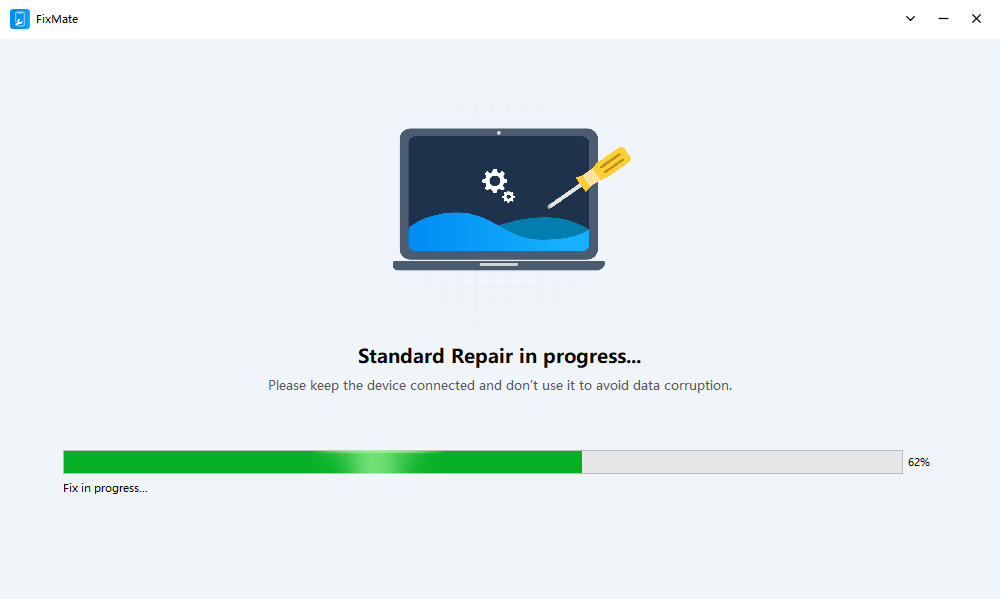
- Standard Repair mode fixes issues without data loss
- Deep Repair for severe system errors
- Beginner-friendly interface
When to Use FixMate:
- iPhone stuck on “Remote Management” screen
- Setup process keeps failing
- Device freezes during configuration
- iOS 26.2 bugs affecting enrollment
With FixMate, you don’t need technical expertise – it simplifies complex repair processes into a few clicks.
3. Gabagabo
The “can’t set up managed iPhone” issue on iOS 26.2 can be frustrating, especially for businesses relying on seamless device deployment. Fortunately, most cases can be resolved by checking network connectivity, verifying MDM configurations, or resetting the device.
However, when standard troubleshooting fails, it’s often a sign of deeper system issues. That’s where AimerLab FixMate stands out as a reliable solution. With its powerful repair capabilities and ease of use, it helps you quickly fix stubborn iOS problems and get your managed iPhone up and running without hassle.
For an easier and more efficient approach to fixing iOS problems, FixMate is definitely worth a look.
- Maxay tahay sababta aan Tooshkeygu ugu shaqeyn doonin iPhone-kayga?
- Sidee loo xalliyaa "iPhone la casriyeeyay ama hadda iPhone Mirroring ma shaqeynayo"?
- Sidee loo xalliyaa qaladka iPhone 75?
- Sidee loo helaa furaha sirta ah ee iPhone iOS 18?
- Maxay tahay sababta aan iPhone-kayga u soo dhacayn? Xalalkan wax ku oolka ah si aad u hagaajiso
- Sidee loo Hagaajiyaa Raadi My iPhone Location Wrong?
- Sida loo Spoof Pokemon Go on iPhone?
- Dulmar guud ee Aimerlab MobiGo GPS Goobta Spoofer
- Sida loo Beddelo Goobta iPhone-kaaga?
- 5-ta ugu sareysa ee goobta GPS-ka beenta ah ee Spoofers ee iOS
- Qeexitaanka Goobta GPS-ka iyo Soo jeedinta Spoofer
- Sida Loo Bedelo Goobtaada Snapchat
- Sida loo helo/la wadaago/la qariyo goobta aaladaha iOS?